I will be showing you 10 ways on how to handle and get used to the basics of Elementor. This will support your journey on you job role as a UI/UX design using Elementor if you want to go down that route.
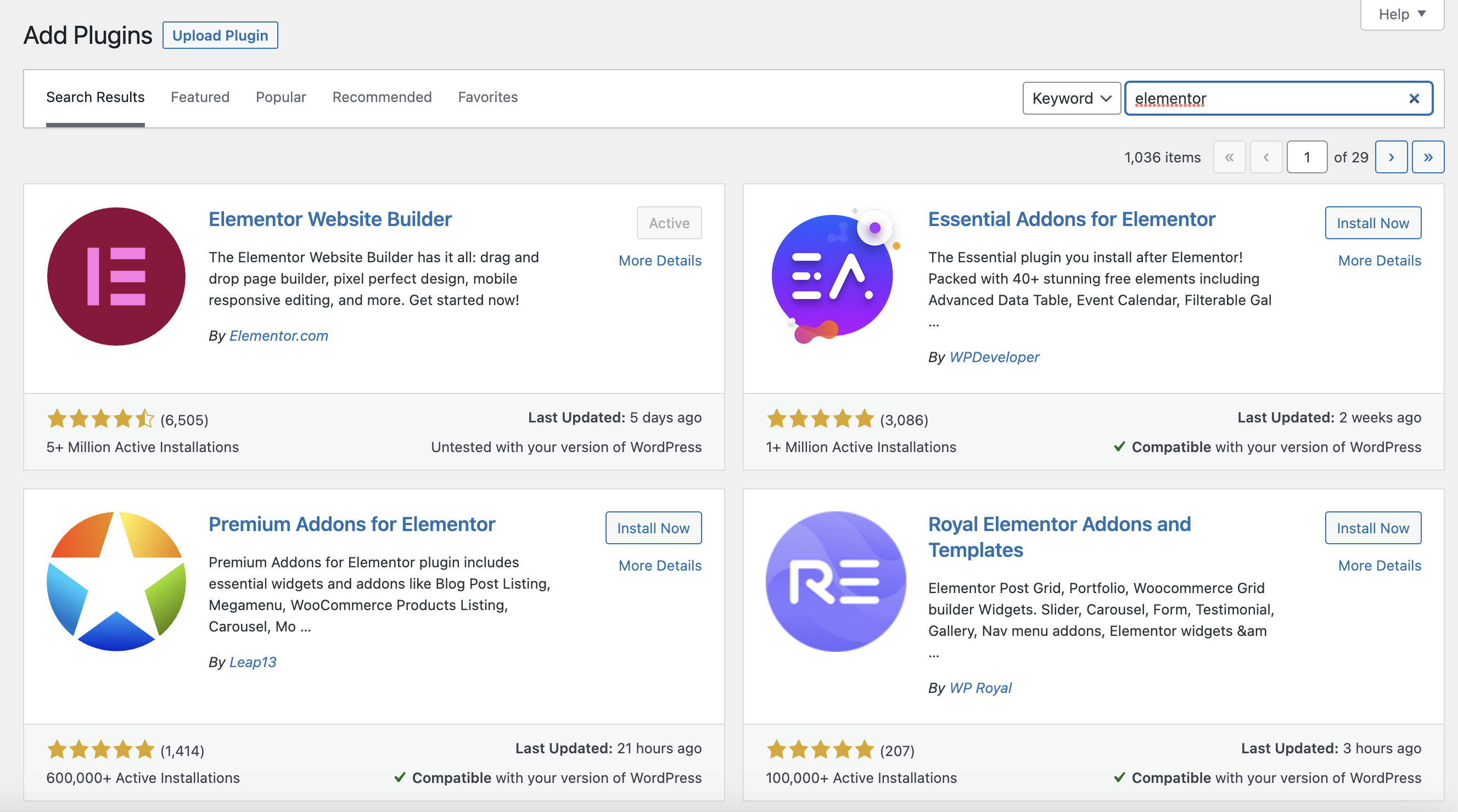
On your WordPress site, go to to add new, search via plugins and search for Elementor to click Install now in order to install it before going to the installed plugins via plugins to activate it.
Basic 2. Change of Page Layout and use of Grids/Structures:
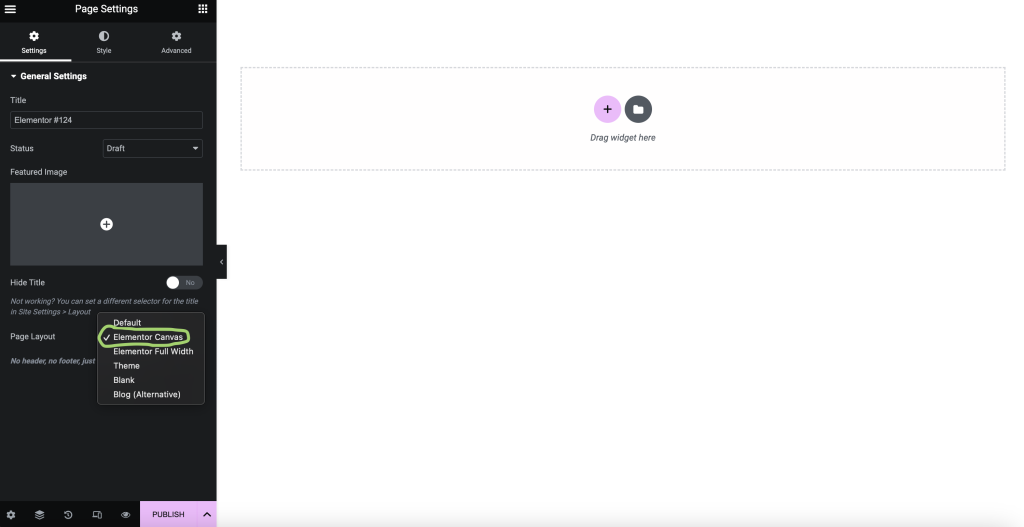
First, click Edit with Elementor to open up your Elementor page and set the page layout to Elementor Canvas to ensure there are no headers and footers before you create a new page on your page. In the way to change the page layout, it will just be Elementor.
Secondly, on your Elementor page, click on the add icon that is shown on the left of the section table with the edit icon in the middle and the delete icon on the right. Once done, click the add new section button and it will give you a selection of grids/structures.
Basic 3. Button:
To add a button, press the add new section button to add a new structure, selecting any grid type (ideally in this instance the two square structure). Once done, click the rectangular + icon and drag the button icon via the left side panel of Elementor in the basic section to the icon to add a button. You can find any links to copy and paste into the link text box and can activate abilities to open in new window and/or add nofollow next to the link text box. You can also change the size of the button via Size with any word that describe the size. Below is a button I have made as a test.
If you want to add videos, go through the same process as adding buttons, but you could change sources from YouTube to other video media sites such as Dailymotion and Vimeo and copy any video link address to paste onto the link bar in your Elementor work. Below is a video link I have copied from YouTube for a video of the Transformers theme for G1 Season 2.
Basic 5. Images:
For images, first ensure your WordPress sites connections are secure before using the same process, dragging the image icon to the rectangular + button to add. You can add images by either choosing images from your media library, adding images from your computers/laptops you save your images onto to be used for media library use or by URL. On the right of this text, I added a drawing image of a MegaMan Battle Network character, Sal.
Basic 6. Spacers:
Again, go through the process of adding things like these along with dividers and buttons and spacers allow you to change the px space of the spacer to leave space between things you add in your Elementor work.
Basic 7. Headings:
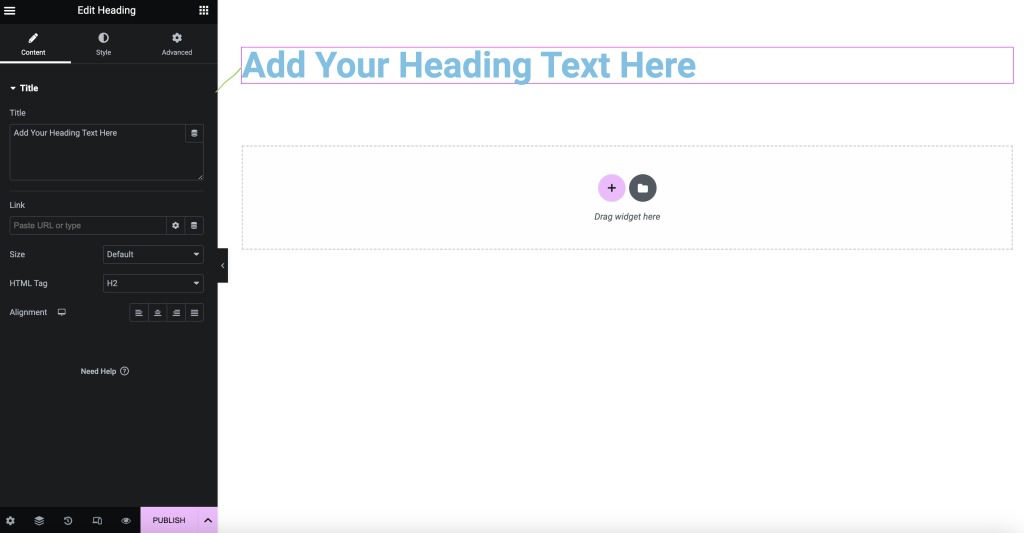
Go through the same process, adding headings and it should come up with a big, bold font. You can change the font size either by the size or HTML tag boxes.
Basic 8. Texts:
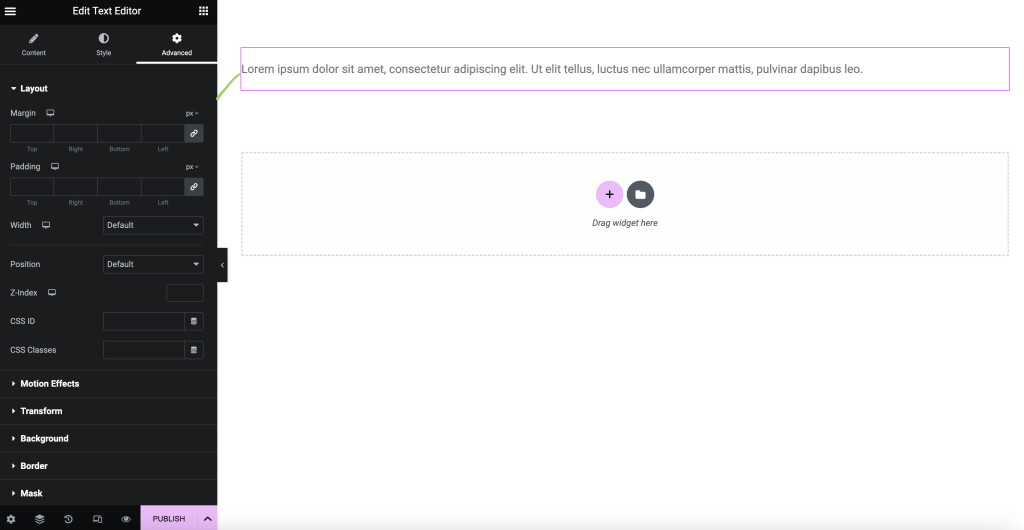
For texts, follow the same process and choose the text editor box to drag it onto the rectangular + button to be added and the text should start with Lorem. You can remove Lorem ipsum words and type anything you want or type professionally. You can also change the font size, add bold, italic and/or underline and use its tools such as added/inserted links and lists whether bulleted or numbered.
Basic 9. Font colour changes:
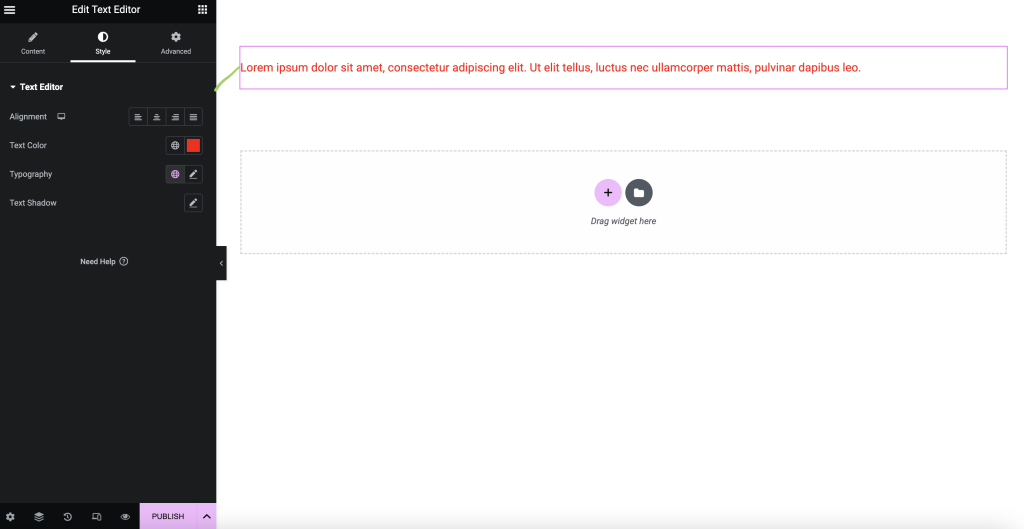
To change font colours, click on any text and you can change the font colours by Style and clicking on the text colour box. As you can see, I set the text colour to red as a test.
Basic 10. Adding custom link addresses to images:
To add custom link addresses to images, add an image via add section and add new section for an option of grids to choose before adding the image icon to the plus icon to choose an image to put. Once done, ensure you set the link to Custom URL before copying any link address from any website.
This is an image of Diddy Kong where I have added a link address leading to a video from YouTube in which I have tested it out first in an empty Elementor page before doing it on this page.
Conclusion
I hope this has been an easy tutorial for you as you will gradually improve from this tutorial page, understanding the basics and getting the hang of them. If you want to learn more, there are more tutorial pages on so many wordpress sites explaining more basics of Elementor.